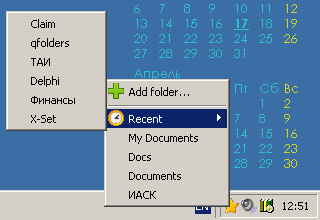
Click on Quick Folders icon in system tray, the list of predefined folders will appear in popup menu. One more click and selected folder open will be opened with Windows Explorer.
You can use [Add folder…] button to add new folder in the list or open Recent folders submenu to select recently accessed folder.
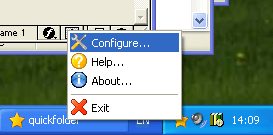
Quick Folders command popup menu
Right click with your mouse on Quick Folders icon in system tray and you see Quick Folders command popup menu.
You can use [Configure…] button to manage your favorite folders or tune number of folders that appears into Recent folders submenu. Here you can get access to Help, information or close this tool.
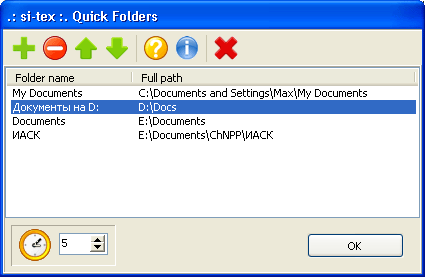
Quick Folders configuration Window
Configuration Window allows you has control on the list of your favorite folders and set number of folders that appears into Recent folders submenu.
Use green "plus" to add and red "minus" to delete folders in the list. With green arrows you cen set position of your folder. List is editable and you can set any custom name to any item without any impact to original folder!
With Spinedit box you can tune Recent folders submenu.